
WordPress navigation
You’ve installed a WordPress site. You’ve added and styled a few pages, and now you decide to visit your site and admire your beautiful work for the first time. But, your beautiful pages, where are they? Don’t those links just automatically appear on your site?
Well, not necessarily! WordPress can automatically list your published pages, but you’ll usually want more control over which pages appear in your navigation and how they’re organized. There’s still more work to do!
WordPress utilizes a combination of Templates and the Site Editor to help you organize and style your Navigation Menu. Like many WordPress features, the interface takes a little bit of time to get familiar with.
Before we get started, it’s helpful to understand three things:
- Navigation Menu: A collection of links that helps visitors move around your website.
- Navigation Block: The WordPress block that displays your menu and lets you customize its appearance.
- Header: The section at the top of your website that typically contains your logo, site title, and navigation menu.
Your Header is often a reusable Template Part, which means the same header can appear across multiple pages and templates. We’ll explore that a little more below!
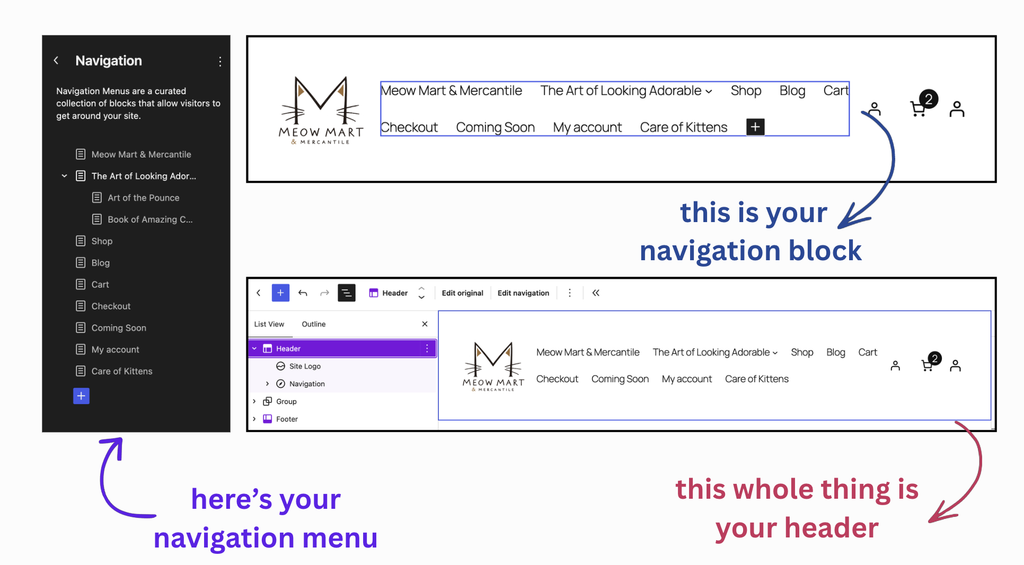
Editing Your Navigation Menu
The first step is to add the appropriate Pages to your Navigation Menu.
To get started, visit your WordPress site’s dashboard, click “Appearance,” and then “Editor.” You’ll land on the Site Editor’s main menu. Editing your navigation menu starts here.

Click on Navigation. This brings you to a page that displays your Navigation Menus. The Pages currently in your Navigation Menu will be listed below.
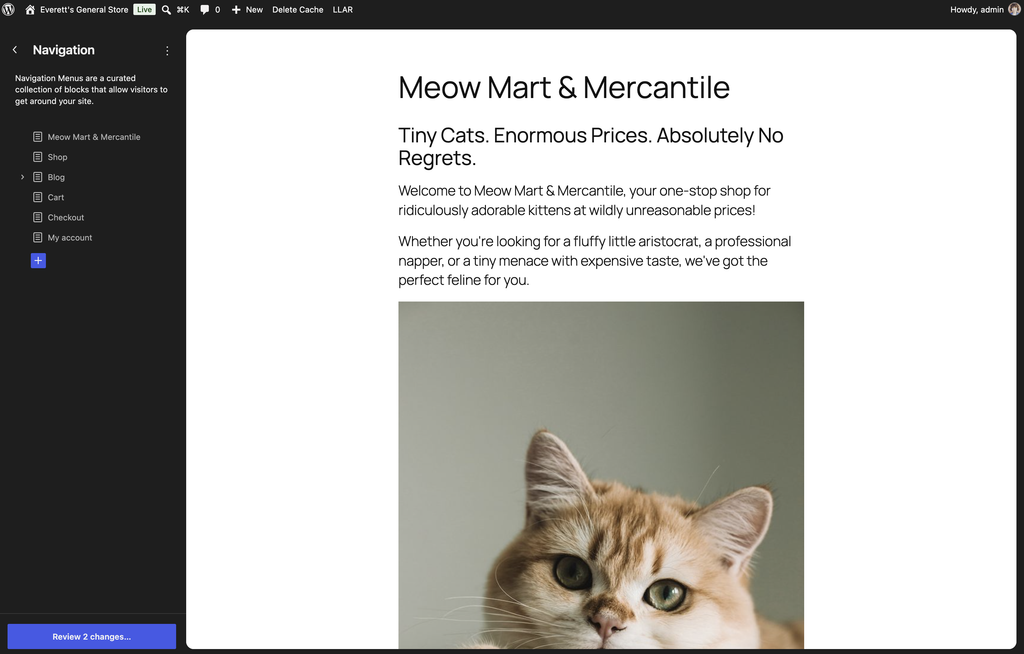
You can make several changes directly from this screen:
- Reorder links by dragging them into a different position.
- Use the three-dot menu beside an individual link to move or remove it.
- Create submenus by nesting links underneath other links.
To make more detailed changes to your menu, click the three vertical dots (⋮) beside the Navigation menu’s name and select Edit.
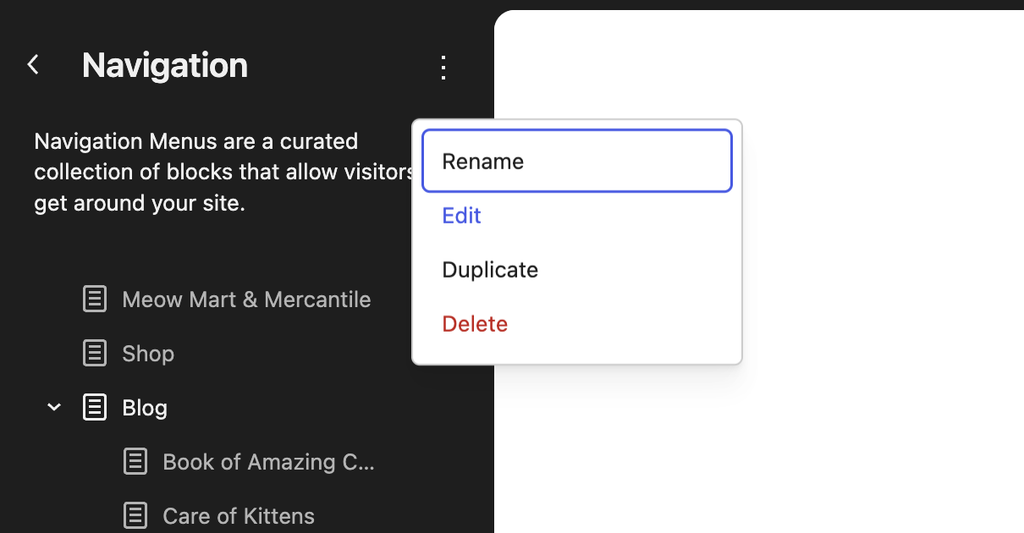
This opens the Navigation Block editor, where you can add new links, change navigation labels, and rearrange your menu.
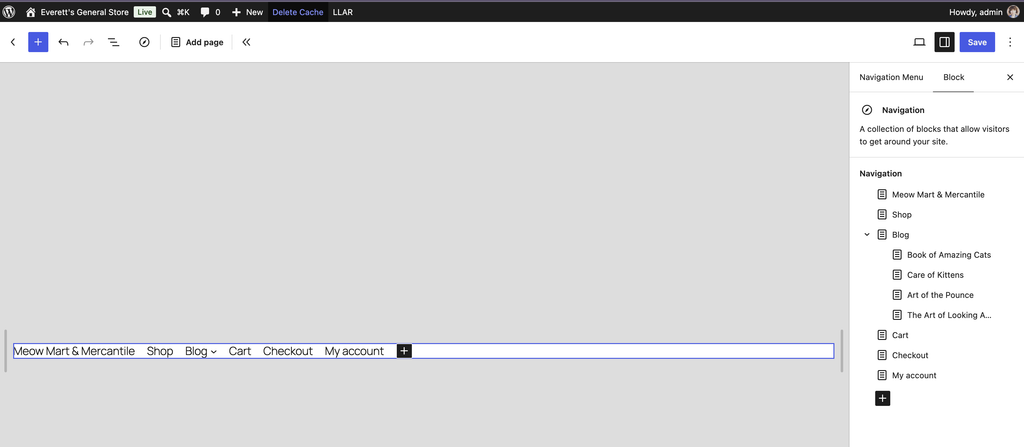
Once you’re editing the Navigation Block, you can:
- Click the + button to add a page or custom link.
- Select an existing link to change its label or destination.
- Use List View to rearrange links or create submenus.
- Remove links you no longer want in the menu.
- Click Save to apply your changes.
What if all your pages are appearing automatically? Some WordPress themes use a Page List block inside the Navigation Block. This automatically adds links to your published pages, which can be convenient for a simple website. But if you want more control over which pages appear, open the Navigation Block, find the Page List block in List View, and select Edit to convert it into individual links you can customize.
Remember: Removing a page from your navigation does not delete the page itself! It simply removes the link from your menu.
A Quick Note About Page Titles
Here’s something that can be a little confusing: A page’s title, its visible H1 heading, and its navigation label are not necessarily the same thing!
For example, imagine you create a page called “My favorite Athens Restaurants” You might want your navigation menu to display the shorter label “Food.”
WordPress lets you customize that navigation label without changing the actual page title or its content.
To rename the actual page, go to Pages → All Pages and use Edit or Quick Edit. To change the label displayed in your menu, edit the corresponding link in your Navigation Block.
Styling Navigation
This is a little trickier. Styling how a navigation menu looks, including its alignment, positioning, typography, and colors, requires editing the Navigation Block itself.
In most block themes, your Navigation Block lives inside a Header Template Part. This Header can be shared by several different templates, which is why editing it can affect multiple pages on your website.
Finding Your Header
From your WordPress Dashboard:
- Navigate to Appearance → Editor.
- Select Patterns.
- Look for Template Parts and select Header.
- Open the Header that your website is using.
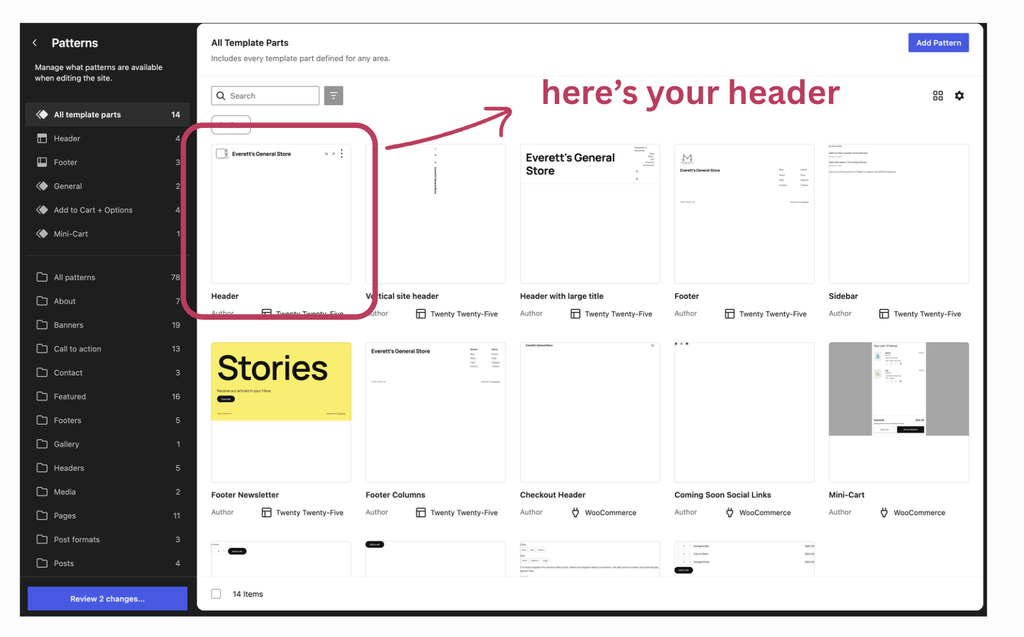
Alternatively, you can open a Template that contains your Header and edit the Header Template Part from there.
Tip: A Template controls the overall structure of a page, while a Template Part is a reusable section, such as a Header or Footer. WordPress organizes Template Parts under Patterns in the Site Editor, even though they’re not quite the same thing as ordinary patterns.
Using List View
Once you’ve opened your Header, turn on List View (the icon with three staggered horizontal lines). You’ll see the blocks that make up your Header, often nested inside Rows or Groups.
The List View feature lets you see how blocks are organized within your website’s layout. Some blocks contain other blocks, so you may need to click the arrows to expand them and see what’s inside.
For example, your Header might contain a Row block with a Site Logo and another Row containing Navigation, a Customer Account block, and other elements.
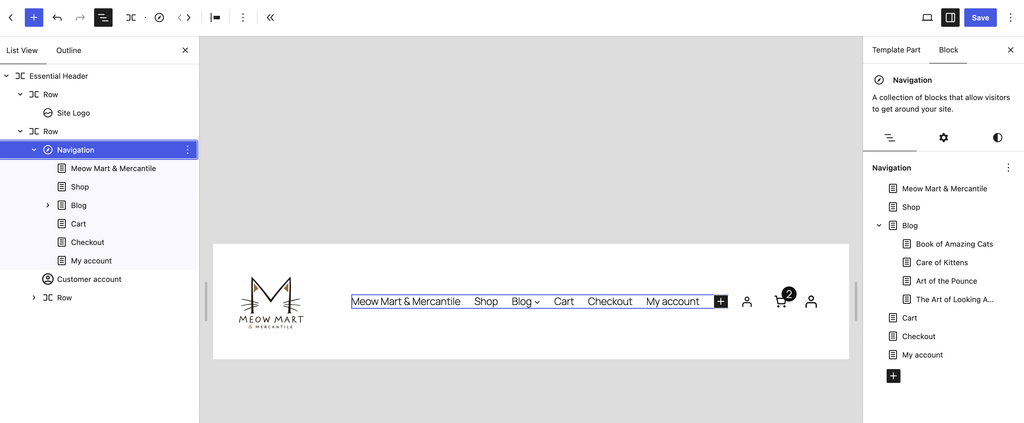
Here’s where List View becomes especially useful: You can select different blocks to customize different parts of your Header.
- Select the Navigation Block to customize the appearance and behavior of your menu.
- Select a Row or Group block to adjust how the elements inside it are arranged, including their alignment, spacing, and positioning.
- Select the outermost Header container to explore broader design options, such as its background color, padding, and overall layout.
When you select a block, the Settings sidebar on the right changes to show options for that particular block. Depending on the block, you can use its Settings and Styles controls to adjust its layout and appearance.
Tip: Remember working with containers in HTML and Bootstrap? WordPress uses a similar concept! Rows and Groups organize other blocks, giving you control over how those elements are arranged and styled.
Customizing Your Header
Before we focus on the Navigation Block, let’s look at how you can customize the Header itself!
When you’re editing your Header, look at the right-hand sidebar. You may notice two tabs: Template Part and Block. These give you different ways to customize your Header.
- Template Part: Select this tab to explore your Header’s overall design. Under Design, WordPress may offer alternative Header layouts that rearrange elements like your logo, navigation, and site title. Select a design to apply it.
- Block: Select this tab to customize whichever block you’ve selected in List View. For example, you can adjust the layout of a Row, change the size of your Site Logo, or customize the appearance of your Navigation Block.
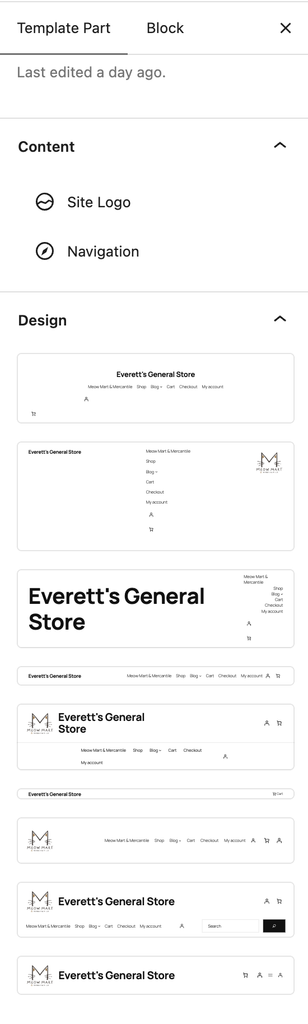
Want to experiment with a different Header design? Explore the options under the Template Part tab. Just be careful: Applying a different design may replace the blocks and customizations in your existing Header.
Prefer to keep your current Header but make a few adjustments? Use List View to select individual blocks, then use the Block tab to customize their settings and styles.
Tip: Think of the Template Part tab as a way to explore different arrangements for your Header, while the Block tab gives you more precise control over individual elements
Customizing Your Navigation
Now that you know how to customize the Header as a whole, let’s focus on the Navigation Block itself.
In List View, expand the blocks until you find Navigation. Select the Navigation Block rather than the surrounding Row or Header. You’ll know you’ve selected the correct block when the right-hand sidebar displays Navigation settings instead of Row or Group settings.
In the right-hand sidebar, select the Block tab. You’ll find settings specific to your Navigation Block, including options for its layout and appearance. Use the Styles controls (the half-filled circle icon) to explore styling options.
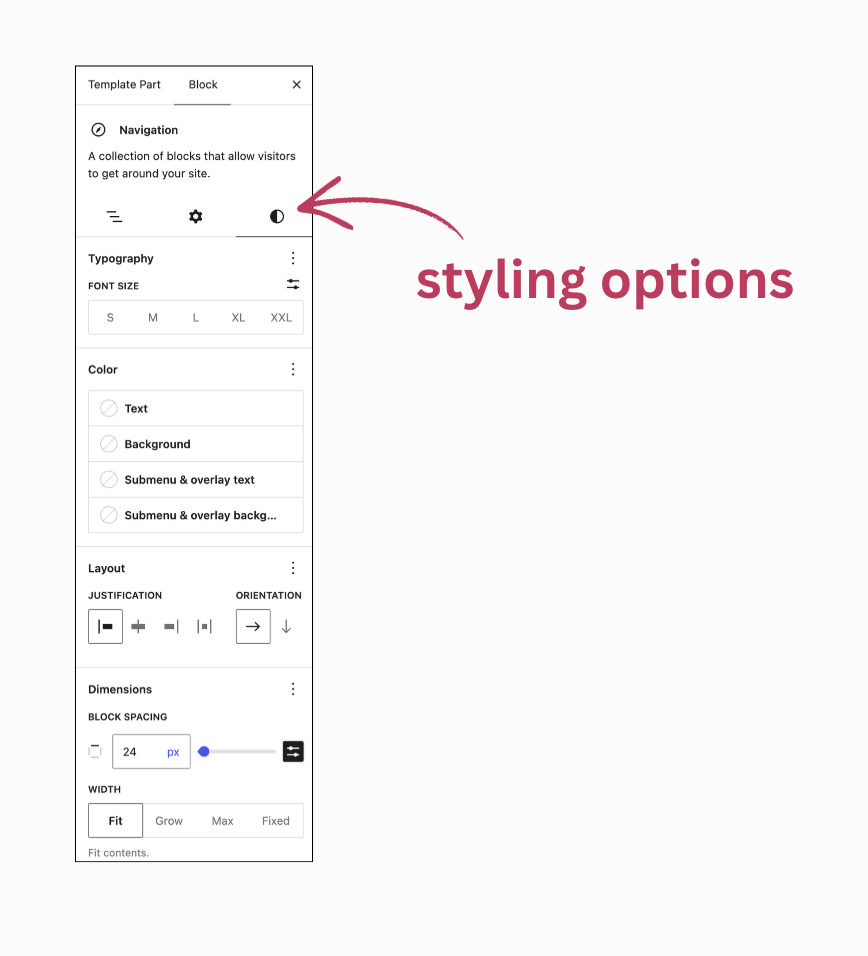
Depending on your theme, you may be able to customize:
- Typography: Change the font family, size, and appearance of your navigation links.
- Colors: Change the text and background colors of your menu.
- Layout: Adjust the alignment and orientation of navigation items.
- Spacing: Change the distance between links.
- Mobile navigation: Control when your menu collapses into a menu icon on smaller screens.
Remember that some styling options depend on your theme. If you don’t see a particular setting, your theme may not support it through the visual editor.
As you experiment, pay attention to which block you’ve selected. Changing a Row or Group can affect multiple elements, while changing the Navigation Block lets you focus on the menu itself.
Once you’re done editing, hit Save. Ta da! You’ve customized your Navigation Menu.
Wait! What’s the Difference Between Patterns and Templates?
As you work with navigation, you’ll encounter Templates, Template Parts, and Patterns. These features are related, but they do different jobs.
- Templates determine the overall layout of a page or type of content. For example, your Pages template might contain a Header, Content block, and Footer.
- Template Parts are reusable sections of a website, such as a Header or Footer.
- Patterns are prearranged collections of blocks that make it easier to build layouts. Some patterns are synced, meaning changes can update every instance. Others are independent once inserted.
Here’s why this matters: If several pages use the same Header Template Part, changing that Header will affect all those pages.
Likewise, if you change the links in a navigation menu that appears in several places, those changes can appear everywhere that menu is used.
But if you edit an individual page’s content, you’re not changing the shared Header or Navigation Block.
Creating and Displaying Navigation Menus
What if you want more than one navigation menu? Maybe you’d like a main menu in your Header and a smaller menu in your Footer with links to Contact, Privacy Policy, and Returns.
WordPress makes this possible, but there are two important pieces to understand:
- A Navigation Menu is the saved collection of links.
- A Navigation Block is the block that displays those links on your website.
Each Navigation Block displays one selected menu at a time. This means creating a menu and deciding where it appears are two separate steps.
Creating a New Navigation Menu
If your Header already contains a Navigation Block, you can create or switch menus from that block:
- Open your Header in the Site Editor and turn on List View.
- Select the Navigation Block.
- Look for the three-dot Options menu associated with the navigation menu’s name in List View. Be sure you’re opening the menu’s options, not the three-dot menu for an individual page link.
- Choose Create new menu to start a blank menu, or Menus to switch to another saved menu.
- Add the links you want and save your changes.
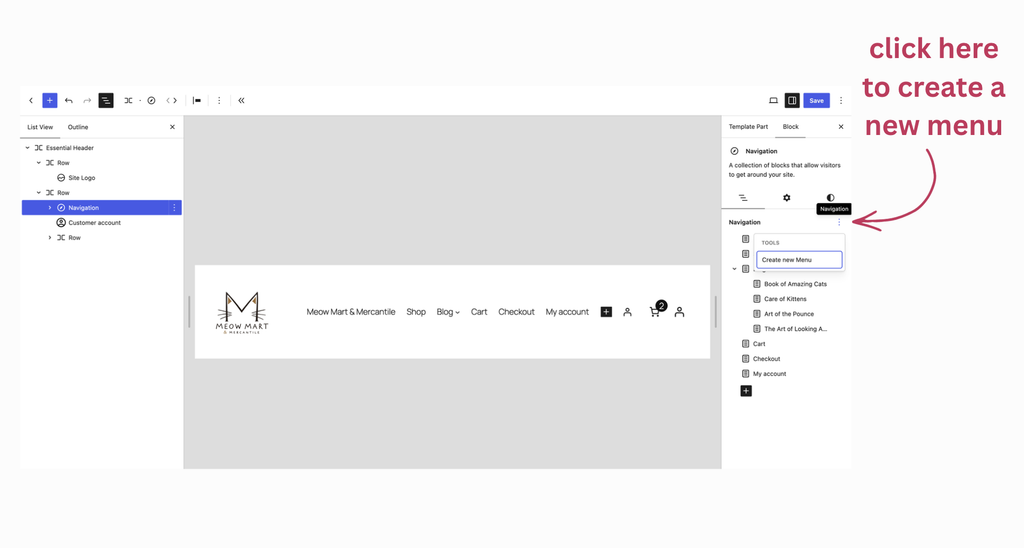
Note: WordPress has changed the placement of these controls across versions. If you don’t see these options, select Navigation and check its Block settings for menu-management controls.
Be careful when switching menus in your Header: you’re changing which collection of links that Navigation Block displays.
Adding Another Navigation Block
You don’t have to replace your Header’s menu to use a different menu somewhere else. You can add another Navigation Block!
- Open the Template Part where you want the new menu to appear, such as your Footer.
- Click the + Block Inserter and search for Navigation.
- Insert the Navigation Block in the appropriate location.
- Choose an existing menu or create a new one using the available menu options.
- Customize the block’s layout and appearance, then click Save.
For example, you could keep your main navigation in the Header and create a separate Footer menu for your site’s policies and contact information.
Tip: You don’t need a new Navigation Block every time you want to add, remove, or rearrange a link. Just edit the existing menu! Create additional blocks when you want navigation to appear in another location or display a different set of links.
A word about navigation
While this isn’t your first navigation rodeo, it’s worth reiterating the importance of navigation. Arguably, navigation is one of the most important features of your site. It orients users. It’s a map telling users what to expect and how to get there. It tells users where they are on the site at any given time.
WordPress offers a lot of help using the Site Editor to change Navigation Menus. Check it out for yourself: