LESSON 01 / 10 MINUTES
Let’s start with something useful: you do not need to know all the code to begin. You do need to pay attention to what you’re asking for and what you get back. We’ll practice both.
So, what is Codex?
Codex is OpenAI’s coding agent. An agent can work through a task using tools: reading project files, making changes, and running checks when its access allows. You describe the result you want, and Codex can help produce the files that make it work.
That means you can ask it to build a small website, explain an unfamiliar project, repair a broken button, or change how an app looks. It can also get things wrong. A confident “done” is your cue to take a look, not proof that everything works.
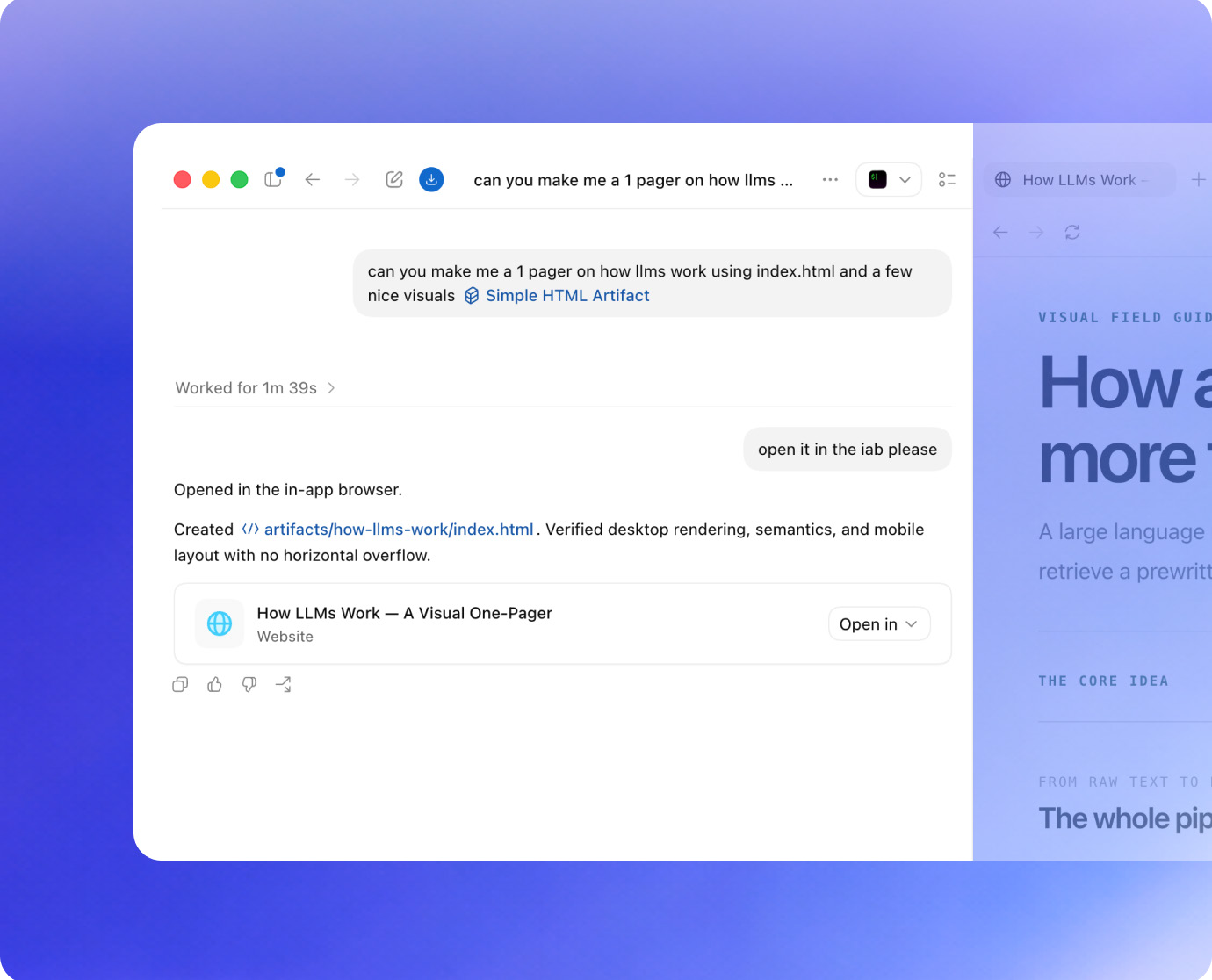
You’re still the person making the thing.
Think about hiring someone to help with a project. “Make it good” leaves a lot of room for interpretation. Who is it for? What should it do? What would make it useful? Codex needs that direction, too.
Your job is to choose the goal, supply the context, and decide whether the result meets the need. You’ll get more out of the tool if you ask it to explain unfamiliar parts as you go.
Describe → Build → Try → Revise
You’ll repeat this loop. The second attempt is part of the process.
A few words you’ll see
Prompt
The message you send: a question, instruction, or description of what you want.
Project folder
The place on your computer where this project’s files live. Choose a folder just for this activity.
Context
The information Codex needs: your audience, requirements, relevant files, examples, or an error you’re seeing.
Preview
A way to open and try what you’re building before you share it.
Bug
A problem that makes something behave differently from what you intended.
Before we hand it the keys
For this module, use made-up tasks and a new practice folder. Keep passwords, student records, private client information, and anything you aren’t allowed to share out of your prompts and project files. Codex needs enough information to do this task; it doesn’t need your entire computer.
Read requests for extra access. If you don’t understand one, ask what it will do. We’ll use the approval setting in the next lesson and keep the project on your computer. Publishing it comes later, if you choose.
QUICK TRY: YOU BE THE REVIEWER
Codex says your planner is finished. It looks great, but every task disappears as soon as you refresh. Is it finished? What would you check or ask next?
Compare your thinking
First, check what you asked it to build. If saving tasks was a requirement, the app has a bug. If it wasn’t, that’s a new feature to request. Either way, describe what you did, what happened, and what you expected. Looking finished and being finished are different things.
BEFORE YOU MOVE ON
In your own words, explain what Codex can do with a project folder and name one thing you’ll check yourself. If those feel fuzzy, reread the first two sections. You’ll use both ideas in a moment.
Reference: OpenAI’s desktop app guide.